Resize images.
Downscale photos to any pixel size — all in your browser.
Drop images here
or browse your files
Paste with ⌘V · or drop files anywhere on the page
Files never leave your device. Everything runs in your browser, nothing touches a server — tools you've used even work offline.
Shrink image dimensions on your device: set the longest side — the page starts at 1920 px — and every photo scales down proportionally with smooth, high-quality resampling. The format stays what it was, compression happens in the same pass, and upscaling never happens: images already smaller than the cap pass through untouched.
Before / after
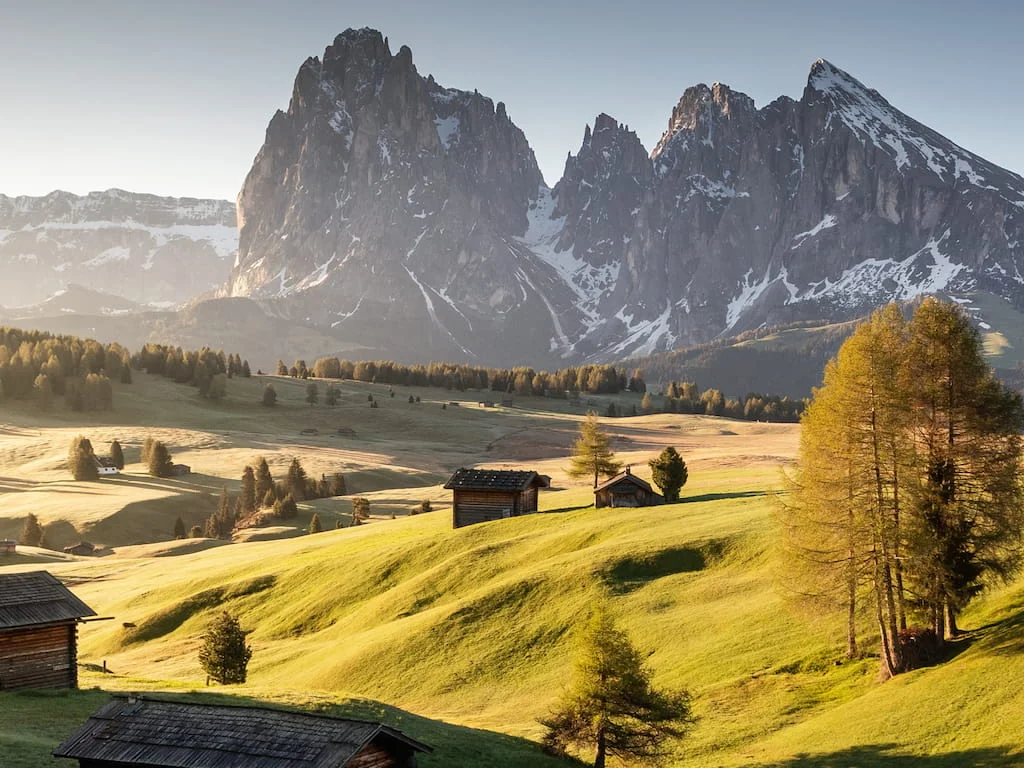
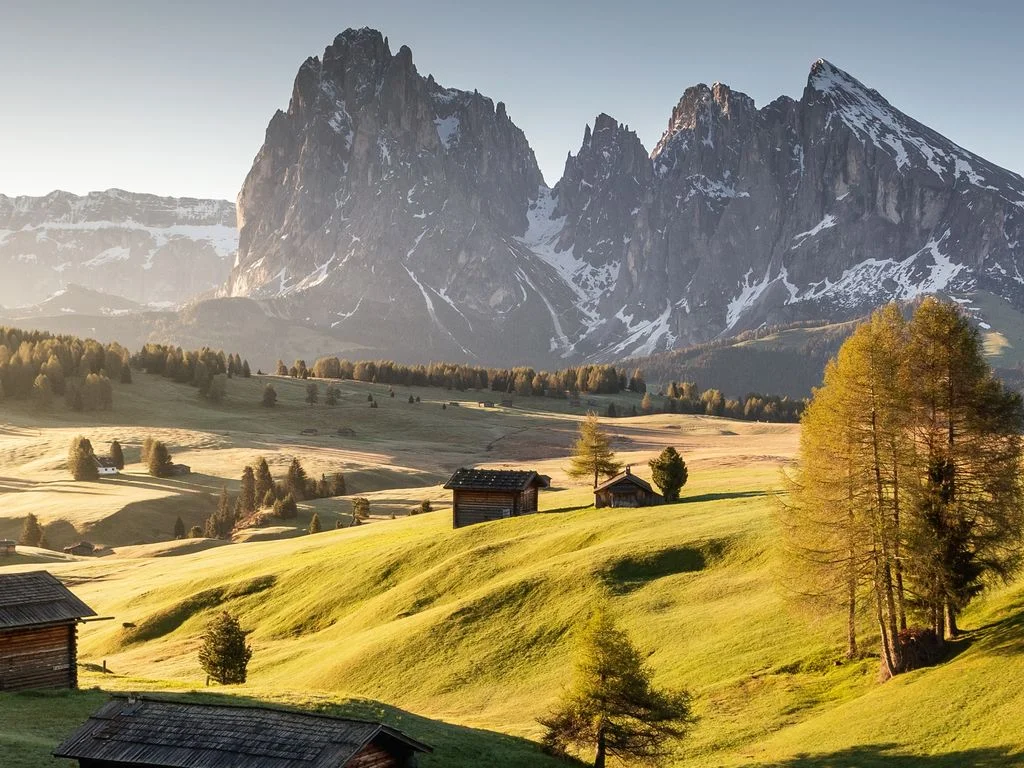
Original
8.2 MB
Compressed
368.2 KB
Saved
−95%
Real result, not a mock-up: this 11-megapixel photo (4000 × 2666) went through the Resize Image tool with a 1920 px cap — resized first, then re-encoded by MozJPEG at quality 80 — and collapsed from 8.2 MB to 368.2 KB. The aspect ratio stays exact. Both sides of the slider are shown at the output's scale (what any screen does with the original anyway), cropped 1:1, so what you're comparing is the honest on-screen difference; the byte counts refer to the complete files.
Photo via Magnific .
How it works
- Drop files anywhere on the page, click to browse, or paste with ⌘V.
- Pick a quality or preset — or set an exact target size and let the tool find it.
- Compress, compare before/after, and download — individually or as a ZIP.
How longest-side resizing works
Thinking in “longest side” beats thinking in width×height: one number covers landscape, portrait and square images without distortion. Resizing is also where the big savings hide — a 48-megapixel phone photo holds many times the pixels a 4K screen can even show, so capping it at 1920 px routinely cuts 80–90% of the file before quality settings matter at all. Once the dimensions are right, compressing the JPG squeezes what remains.
Under the hood
The resample runs first, at high quality, and the result is re-encoded by MozJPEG — Mozilla’s tuned JPEG encoder, compiled to WebAssembly and running on your device. Aspect ratio is preserved exactly; only the pixel count changes.
Common target sizes
| Use | Longest side |
|---|---|
| 4K displays and print | 3840 px |
| Web pages & full-HD screens | 1920 px |
| Email and chat photos | 1280 px |
| Thumbnails & avatars | 640 px |
Resize and compress in one pass
The dimension cap and the quality slider work together in a single encode — there’s no second generation loss from doing them separately. For an upload form with a size cap, combine the cap with target-size mode: quality adapts first, and if you allow downscaling to reach the target, dimensions give way only when quality alone can’t get there.
Frequently asked questions
Does resizing keep the aspect ratio?
Always. You set one number — the longest side — and the other dimension follows proportionally. A 4000×3000 photo capped at 1920 px becomes 1920×1440; a portrait becomes 1440×1920.
Can it enlarge small images?
No — the cap is downscale-only by design. Upscaling invents pixels and makes photos blurry, so images already within your limit are left at their original size.
Which formats can I resize?
JPG, PNG, WebP, GIF and HEIC — drop any mix. Each keeps its own format by default, animations are resized frame by frame, and you can pick a different output format on the tab if you want conversion too.
Are my photos uploaded?
No — the pixels never leave your machine. Decoding and re-encoding both happen in your browser; there is no upload to wait for and no server-side copy to worry about afterwards. Want proof? Run one file through, switch your connection off, and run another — it still works.