Compress PDFs.
Shrink PDFs in your browser — files are never uploaded.
Drop PDF files here
or browse your files
Paste with ⌘V · or drop files anywhere on the page
Files never leave your device. Everything runs in your browser, nothing touches a server — tools you've used even work offline.
Compress PDF files right in your browser — no upload, no waiting on a server. Pick a compression level or a target size like 2 MB — and merge PDFs, extract or remove pages, or convert between PDFs and images with the same tool. Documents never leave your device.
Before / after
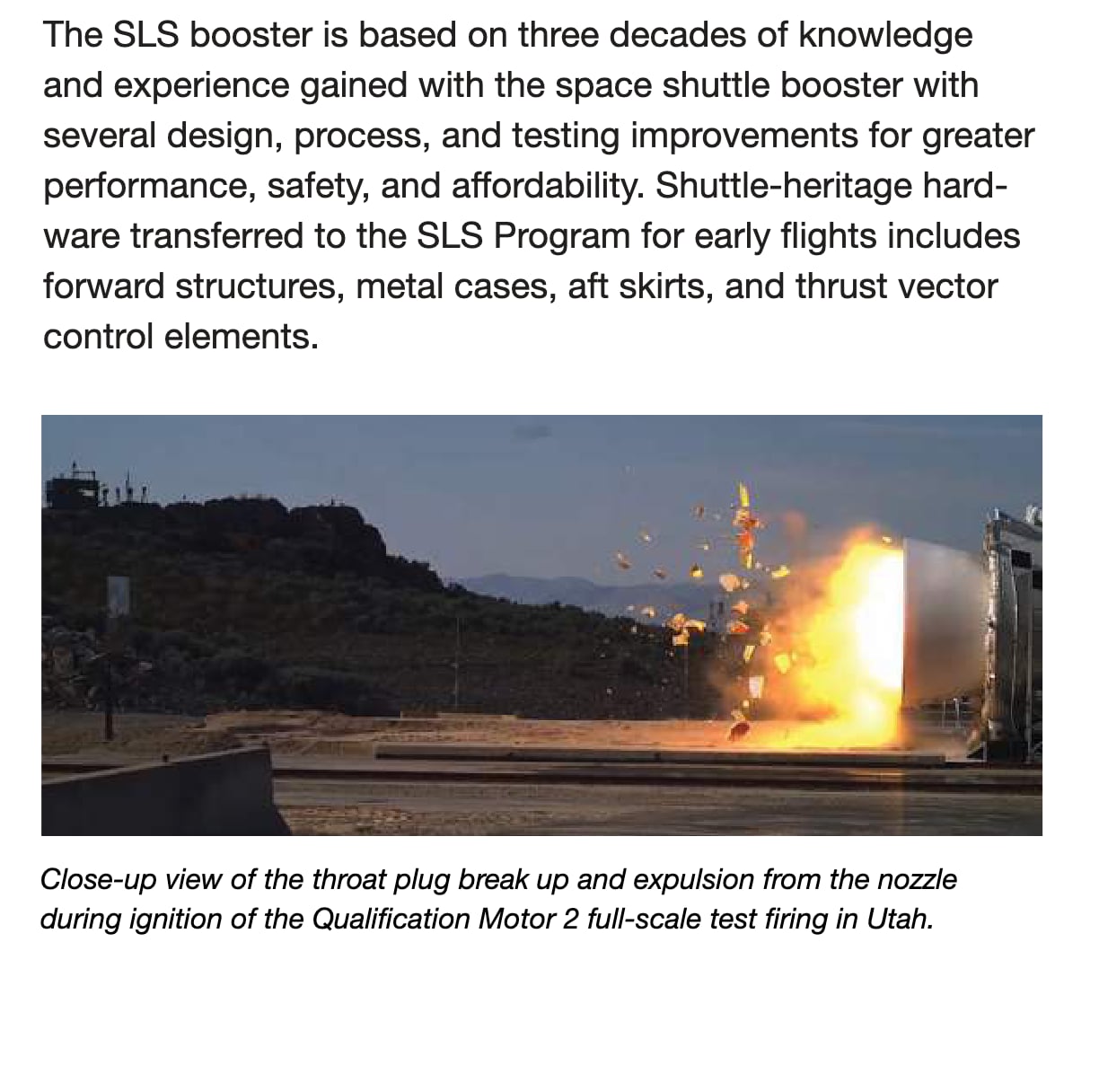
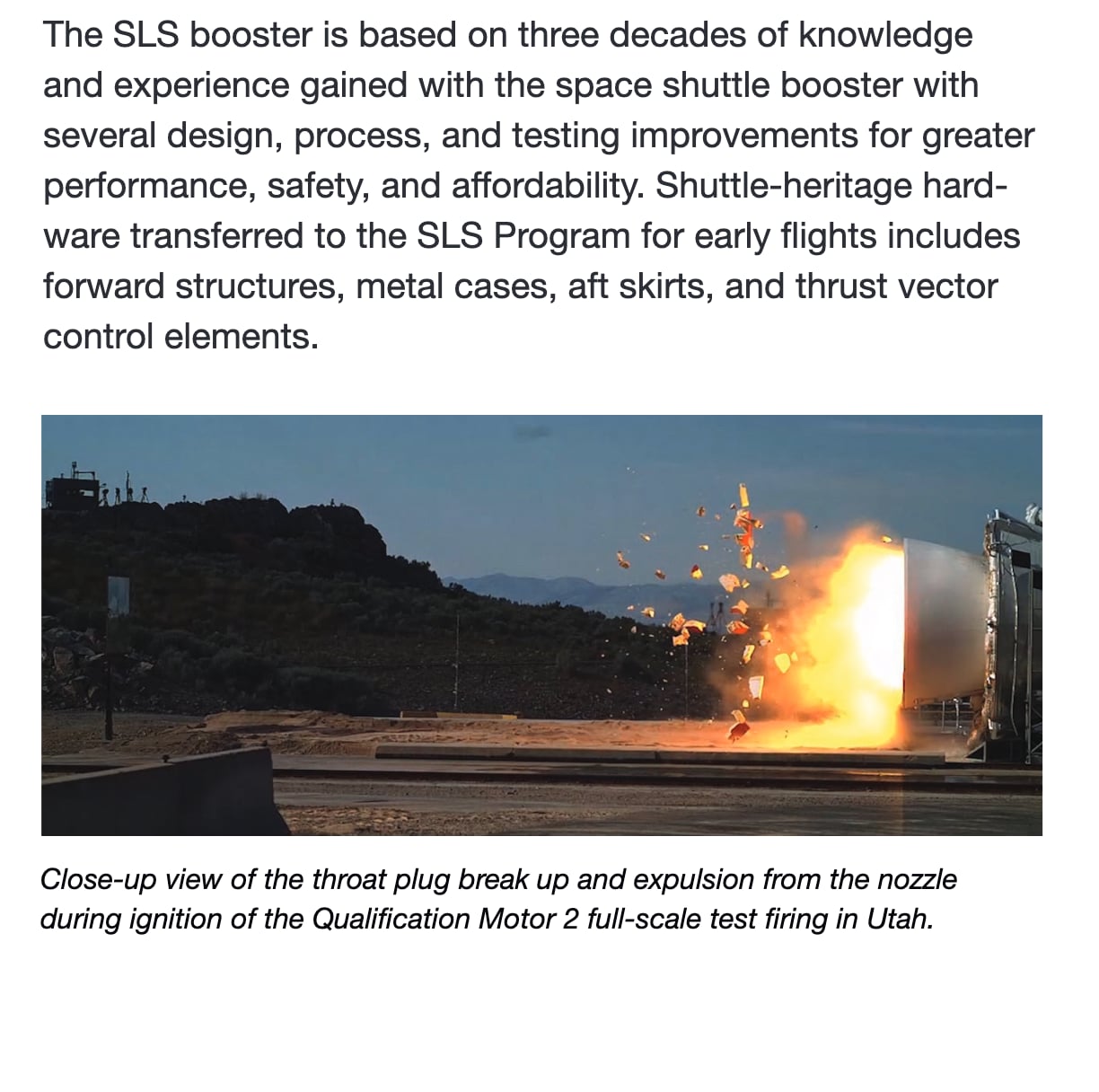
Original
62.2 MB
Compressed
8.6 MB
Saved
−86%
Real result, not a mock-up: this 83-page NASA reference guide — 62.2 MB, more than twice the ~25 MB e-mail attachment cap — went through the Compress PDF tool — Ghostscript at the Medium preset — and came out at 8.6 MB, small enough to attach anywhere. What you're dragging is the same page of both documents, rendered at 288 DPI and cropped 1:1: the photos inside were downsampled to 150 DPI, while the text is vector data and stays razor-sharp — that's the trade every preset makes. The byte counts refer to the complete files; run the same guide through yourself and you'll get the same number.
NASA SLS Reference Guide (2022) — public domain.
How it works
- Drop files anywhere on the page, click to browse, or paste with ⌘V.
- Pick a quality or preset — or set an exact target size and let the tool find it.
- Compress, compare before/after, and download — individually or as a ZIP.
Choosing a preset
Each preset trades image sharpness for size by downsampling the pictures inside the PDF — text always stays crisp, because it is vector data that costs almost nothing.
| Preset | Image resolution | Best for |
|---|---|---|
| Low | 300 DPI | Archival copies and print — barely touched |
| Medium | 150 DPI | The all-round default: email, sharing, filing |
| High | 120 DPI | Web publishing and internal documents |
| Ultra | 72 DPI | Screen-only reading, big scans |
| Extreme | 50 DPI | When only the size limit matters |
Common upload limits — and how to hit them
Most email providers cap attachments around 25 MB — and because attachments are re-encoded for transport, a file should really stay under ~19 MB to send reliably. Government portals, job applications and e-invoicing systems are stricter still, typically 2–5 MB per document.
Instead of guessing which preset gets you there, switch to target-size mode and type the limit itself (say 2 MB): the tool keeps trying stronger settings until the output fits, and tells you honestly if the target is impossible. If several documents must travel together, merge them first and compress the combined file; if only a few pages matter, split the PDF and send just those.
Scanned vs. text-only PDFs
Scanned documents shrink dramatically — every page is a photograph, so downsampling and re-encoding routinely cuts 80–90% of the size. Digitally created, text-only PDFs are already compact; if yours barely shrinks, it was efficient to begin with. Image-heavy presentations sit in between and respond very well to the Medium and High presets.
Under the hood
Compression is done by Ghostscript — the PDF engine that has anchored print and publishing workflows for decades — compiled to WebAssembly and running locally, so a confidential contract gets professional-grade processing without ever touching a server. Merge, split and page extraction run on pdf-lib, and page previews render through pdf.js, the same PDF renderer Firefox uses.
Frequently asked questions
Is it safe to compress confidential PDFs here?
Yes — this is the point of the tool. Compression runs entirely on your own device; documents are never uploaded and no server ever sees them. Close the tab and nothing remains. Want proof? Run one document through, switch your connection off, and run another — it still works.
How small can a PDF get?
It depends on what is inside. Scanned or image-heavy PDFs shrink dramatically because images are downsampled and re-encoded; text-only PDFs are already compact.
Can I hit an exact size like 2 MB?
Yes — target-size mode tries increasingly strong settings until the output fits under your limit, ideal for portals that cap uploads.
Is there a file size limit?
No hard limit — processing is bounded by your device’s memory. Very large files (200 MB+) work, they just take longer. There are no artificial limits either: no daily caps, no ads, no premium tier.