Compress JPG images.
Smaller JPG photos in your browser — nothing is uploaded.
Drop JPG files here
or browse your files
Paste with ⌘V · or drop files anywhere on the page
Files never leave your device. Everything runs in your browser, nothing touches a server — tools you've used even work offline.
Shrink JPG (JPEG) photos right here in your browser. Pick a quality, or name a target size like 500 KB and let the tool find the best quality that fits. Nothing is uploaded — your photos never leave your device. Free, with no ads, no accounts and no watermarks.
Before / after
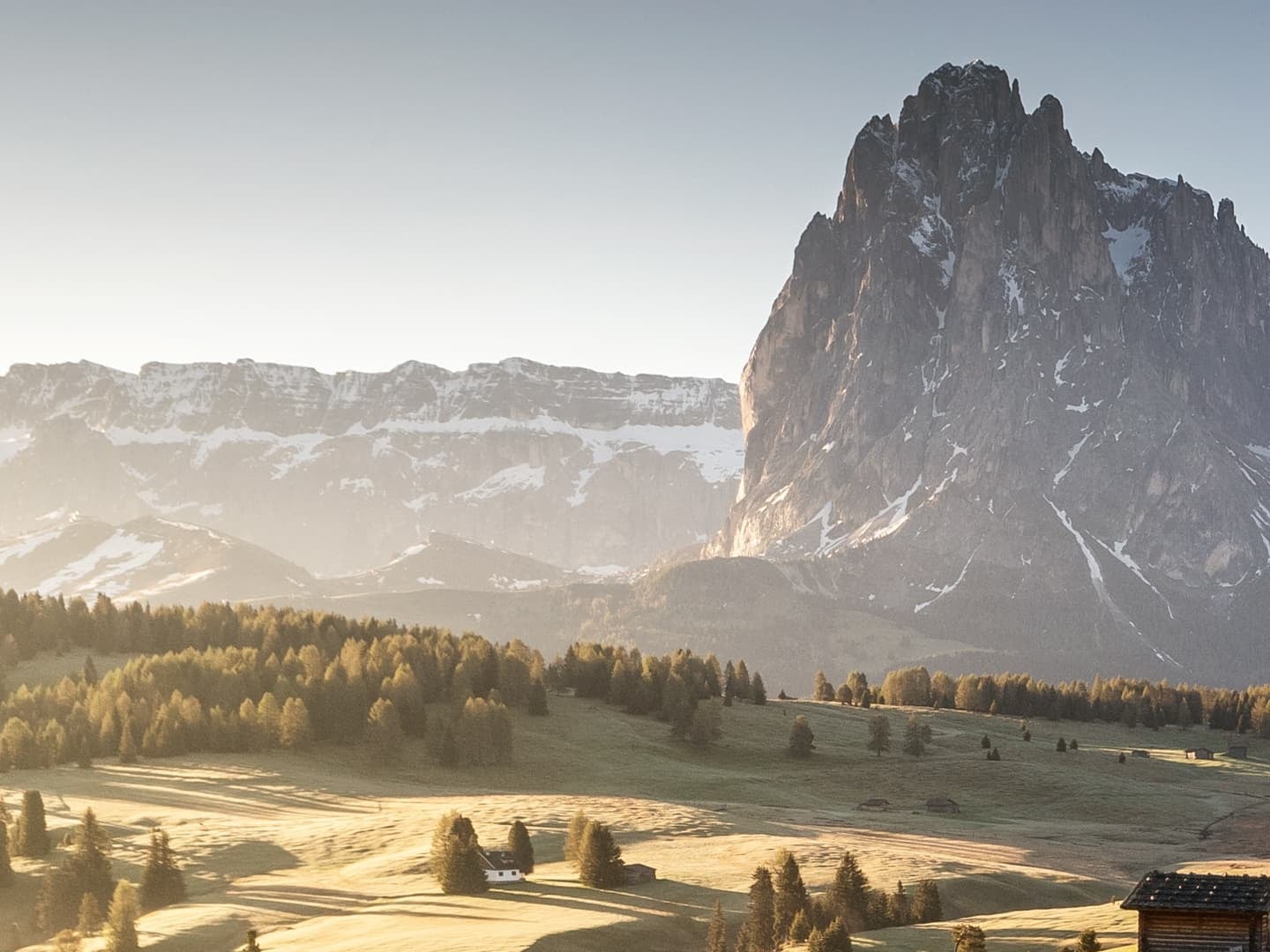
Original
8.2 MB
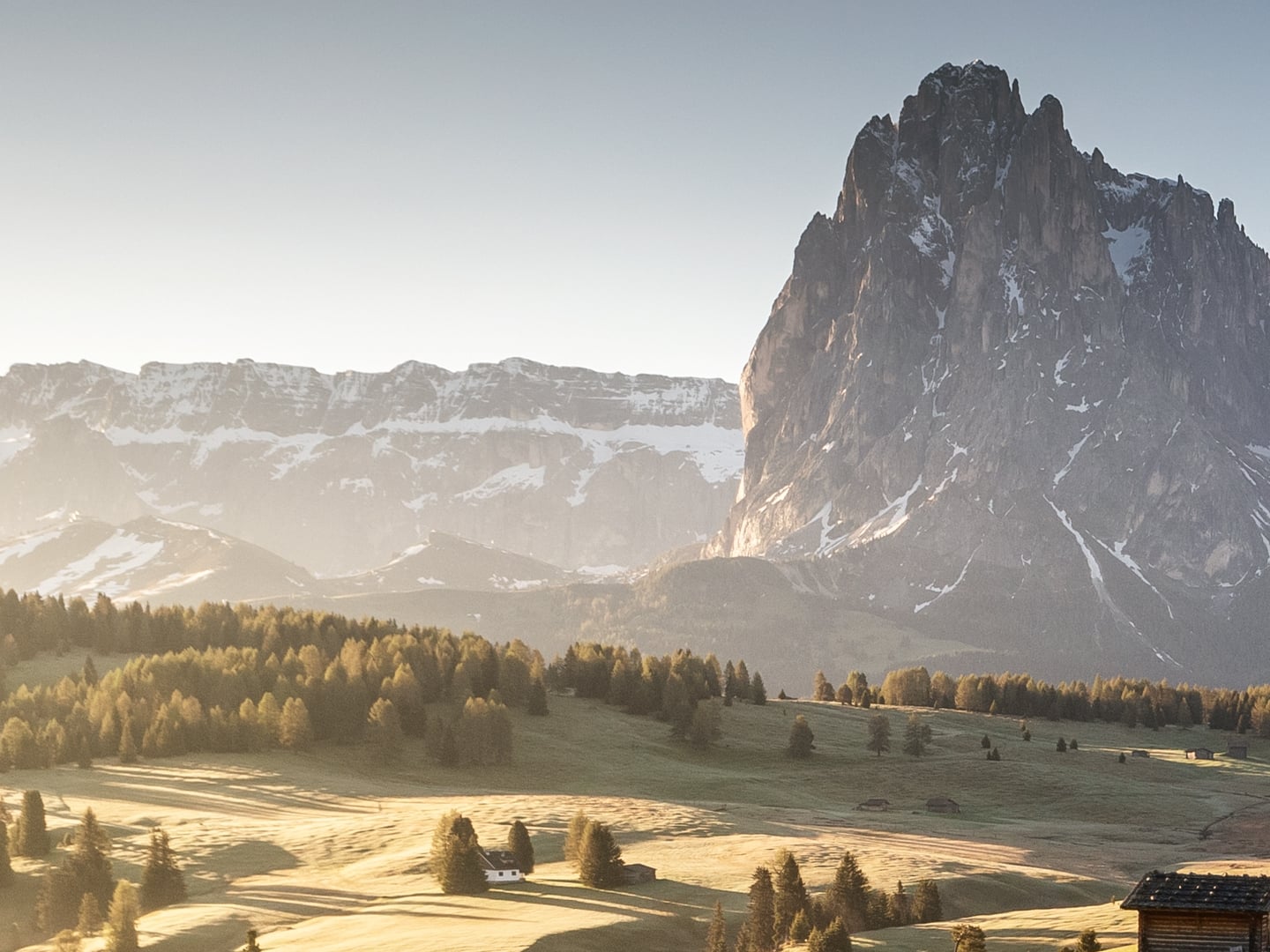
Compressed
1.1 MB
Saved
−87%
Real result, not a mock-up: this 11-megapixel photo (4000 × 2666) went through the Compress JPG tool — MozJPEG at quality 75 — and dropped from 8.2 MB to 1.1 MB. What you're dragging is a 100% detail crop of both files, so any compression artifacts would be visible at full size; the byte counts refer to the complete files. Drop the same photo in yourself and you'll get the same number.
Photo via Magnific .
How it works
- Drop files anywhere on the page, click to browse, or paste with ⌘V.
- Pick a quality or preset — or set an exact target size and let the tool find it.
- Compress, compare before/after, and download — individually or as a ZIP.
How JPG quality works
JPG quality is not a percentage of anything — it steers how aggressively fine detail is discarded, and file size responds exponentially. The compression here is tuned to pack more into every quality point than a typical photo app manages. Around quality 80, most photos are visually indistinguishable from the original at half the size or less; below 60, smooth gradients start to band and fine texture smears. If the photo is bound for the web, JPG to WebP buys another 25–35% at the same visual quality.
Recommended quality by use
| Use | Quality |
|---|---|
| Web pages and blogs | 75–80 |
| Email and chat photos | 70 |
| Print and archives | 90–95 |
| Thumbnails | 60 |
Hitting an exact size
Upload forms don’t speak quality, they speak kilobytes — switch to target-size mode and type the limit (say 500 KB). The tool searches quality until the file fits and tells you honestly when it can’t. If “Allow downscaling” is on, dimensions shrink as a last resort, never below 320 px on the longest side. Prefer to control dimensions yourself? The image resizer caps the longest side exactly. And for the classic form limit, the compress JPG to 100 KB page arrives with the cap already typed in.
Under the hood
Compression on this page runs on MozJPEG — Mozilla’s tuned JPEG encoder, the same library professional image pipelines build on — compiled to WebAssembly so it works entirely on your device. MozJPEG spends extra effort on trellis quantization and progressive scan ordering, which is where the extra quality per kilobyte comes from: slower than a stock encoder, visibly smaller at the same quality.
Frequently asked questions
Is it safe to compress private photos here?
Yes. The pixels are decoded and re-encoded right in your browser — images are never uploaded, and the server does nothing but deliver this page. Close the tab and no trace of your photos remains. Want proof? Run one file through, switch your connection off, and run another — it still works. Compressing also strips hidden metadata — EXIF, GPS location and camera details never reach the output.
Does compressing a JPG lose quality?
JPG is a lossy format, so re-encoding trades some detail for size. Around quality 80 the difference is usually invisible — use the built-in before/after compare to judge for yourself.
Can I hit an exact file size like 500 KB?
Yes. Switch to target-size mode and enter a limit — the tool searches for the highest quality that stays under it, which is perfect for upload forms with size caps.
Can I resize photos at the same time?
Yes — set a longest-side cap and images are downscaled before encoding. For phone photos this is often the single biggest saving.