Compress images.
JPG, PNG, WebP, HEIC & more — compressed on your device.
Drop images here
or browse your files
Paste with ⌘V · or drop files anywhere on the page
Files never leave your device. Everything runs in your browser, nothing touches a server — tools you've used even work offline.
Compress any image right in your browser — JPG, PNG, WebP, GIF, HEIC and AVIF each land on the right tool automatically. Pick a quality, set an exact target size like 200 KB, or cap the dimensions; batches download as a ZIP. Nothing is uploaded, and there are no ads and no limits.
Before / after
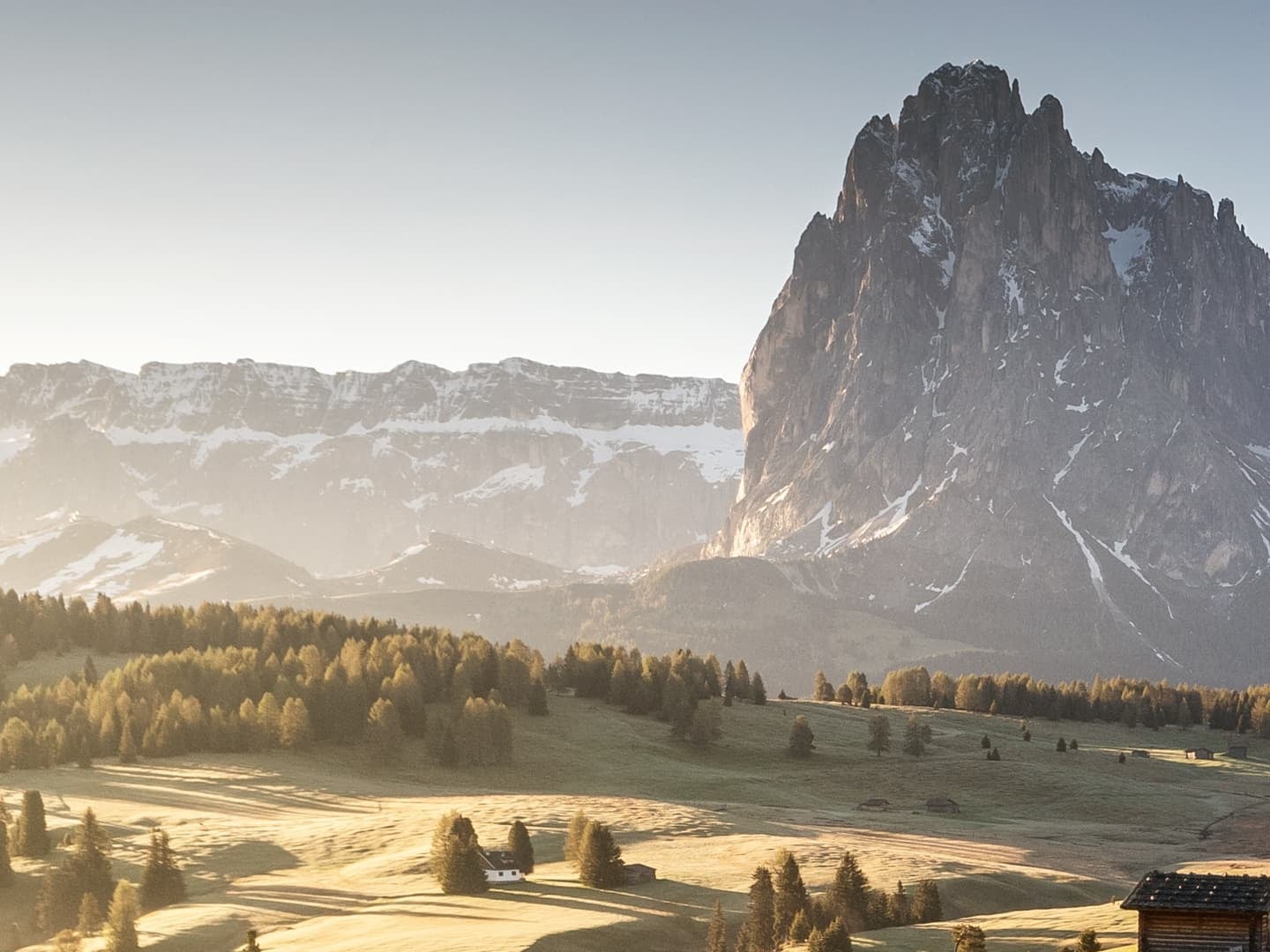
Original
8.2 MB
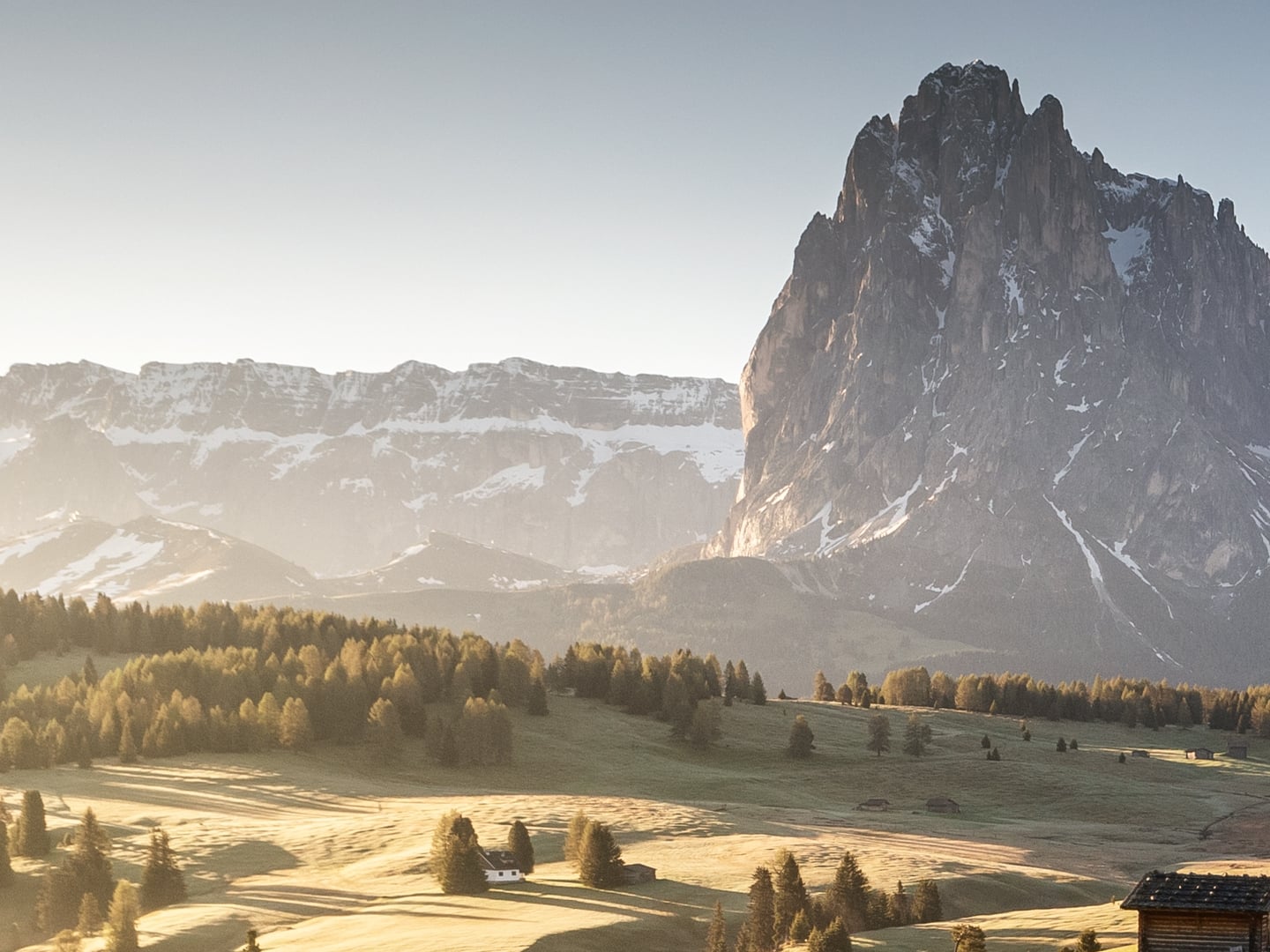
Compressed
1.1 MB
Saved
−87%
Real result, not a mock-up: this 11-megapixel photo (4000 × 2666) went through the Compress JPG tool — MozJPEG at quality 75 — and dropped from 8.2 MB to 1.1 MB. What you're dragging is a 100% detail crop of both files, so any compression artifacts would be visible at full size; the byte counts refer to the complete files. Drop the same photo in yourself and you'll get the same number.
Photo via Magnific .
How it works
- Drop files anywhere on the page, click to browse, or paste with ⌘V.
- Pick a quality or preset — or set an exact target size and let the tool find it.
- Compress, compare before/after, and download — individually or as a ZIP.
One dropzone, every format
Drop any mix — phone photos, screenshots, stickers, scans — and each image is handled by the codec built for it. If you know what you have, the dedicated pages expose the same engines with format-specific guidance: Compress JPG for photos, Compress PNG for screenshots and graphics, Compress HEIC for iPhone shots.
The three levers, in order
Dimensions first: a photo far larger than its destination wastes more bytes than any quality setting can recover — the image resizer caps the longest side. Quality second: 75–85 covers almost every real use. Format last: Auto mode picks it per image, so you rarely need to.
Under the hood
One dropzone, but not one engine: every image is routed to the reference encoder for its format — MozJPEG for JPG, OxiPNG and libimagequant for PNG, libwebp for WebP, libavif for AVIF — each compiled to WebAssembly and running on your device. You get the specialist tool’s results without knowing which specialist you needed; the routing happens automatically, file by file.
Frequently asked questions
Which output format should I pick?
Usually none — the default Auto mode tries the best formats for every image and keeps the smallest file that still looks right. Pick a specific format only when the destination demands one, like JPG for an upload form.
Is the compression lossless or lossy?
Your choice. The quality slider trades invisible detail for size — around 80 the difference is imperceptible for photos. PNG at quality 100 stays fully lossless, and the built-in before/after compare lets you judge every result.
Can I compress to an exact size?
Yes — switch to target-size mode and type the cap, like 200 KB. The tool finds the highest quality that fits under it for every image in the batch.
Is it safe for private photos?
Yes. The pixels are decoded and re-encoded right in your browser — images are never uploaded, and the server does nothing but deliver this page. Close the tab and no trace of your photos remains. Want proof? Run one file through, switch your connection off, and run another — it still works.