Compress HEIC photos.
Shrink iPhone HEIC photos locally — nothing is uploaded.
Drop HEIC files here
or browse your files
Paste with ⌘V · or drop files anywhere on the page
Files never leave your device. Everything runs in your browser, nothing touches a server — tools you've used even work offline.
Compress iPhone HEIC photos right in your browser. Browsers can open HEIC but not save it, so compressed photos are exported as JPG, PNG, WebP, or AVIF — pick a quality or an exact target size like 500 KB. Nothing is uploaded; your photos never leave your device.
Before / after
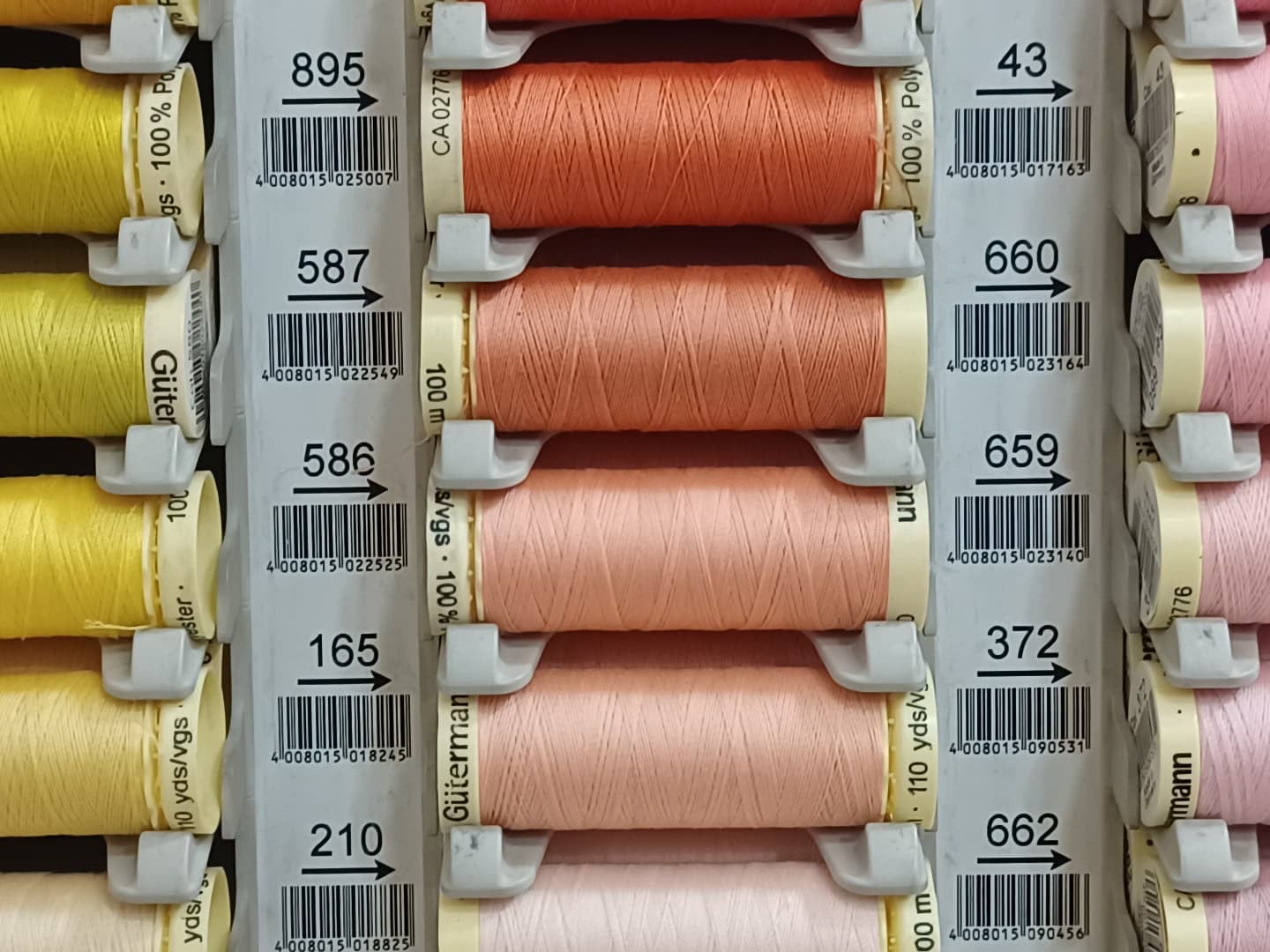
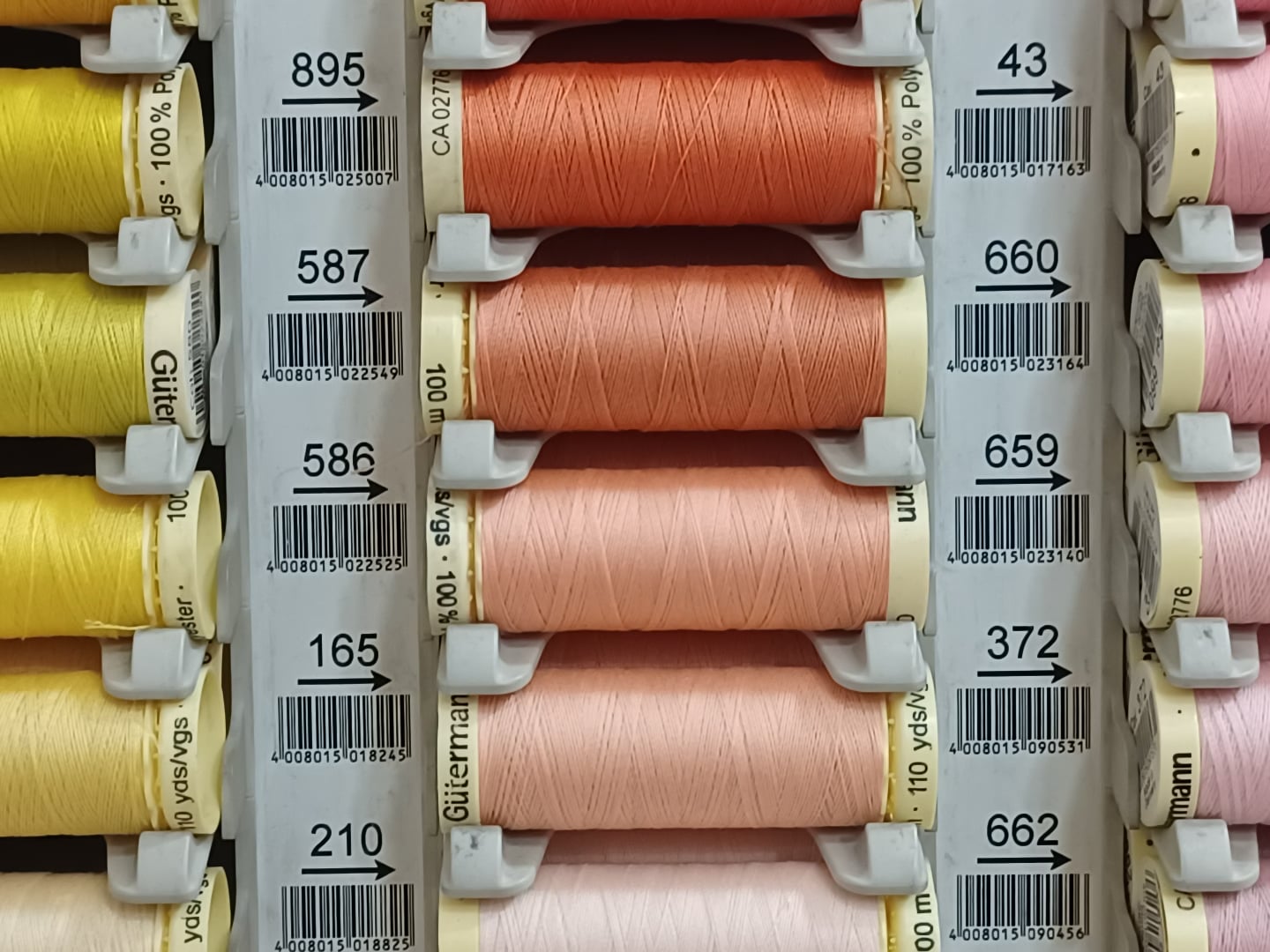
Original
1.6 MB
Compressed
1.1 MB
Saved
−33%
Real result, not a mock-up: this 12-megapixel HEIC went through the Compress HEIC tool — decoded by libheif, re-encoded by MozJPEG at quality 75 — and dropped from 1.6 MB (HEIC) to 1.1 MB (JPG). Browsers can open HEIC but not save it, so the output is a universal JPG — the format change is part of the result. The slider shows a 100% detail crop of both files; the byte counts refer to the complete files.
Photo via HEIC Digital .
How it works
- Drop files anywhere on the page, click to browse, or paste with ⌘V.
- Pick a quality or preset — or set an exact target size and let the tool find it.
- Compress, compare before/after, and download — individually or as a ZIP.
What HEIC is
HEIC is Apple’s space-saving photo format — the iPhone default since iOS 11. It packs the same photo into roughly half a JPG’s bytes, which is why your camera roll uses it, and why so many upload forms, Windows apps and older tools still refuse it.
Compress it or convert it?
If the photo stays in the Apple ecosystem, compressing HEIC keeps the efficient format — this tab simply re-encodes it smaller. If it needs to go anywhere else, HEIC to JPG is the pragmatic move: universally readable, slightly larger. Either way the work happens on your device — iPhone photos are exactly the kind of thing that shouldn’t tour a stranger’s server.
Quality picks
| Use | Quality |
|---|---|
| Share within the Apple world | 75 |
| Long-term storage | 85 |
| Squeeze a full camera roll | 65 — or set a target size |
Under the hood
Browsers cannot read HEIC natively, so this page brings its own decoder: libheif with libde265, compiled to WebAssembly, unpacks your iPhone photo entirely on your device. The result is then written by the destination format’s reference encoder — MozJPEG for JPG, libwebp for WebP, and so on. Two proven engines back to back, and the photo never touches a server.
Frequently asked questions
Is it safe to compress iPhone photos here?
Yes. The pixels are decoded and re-encoded right in your browser — images are never uploaded, and the server does nothing but deliver this page. Close the tab and no trace of your photos remains. Want proof? Run one file through, switch your connection off, and run another — it still works.
Why does my compressed HEIC come out as JPG or WebP?
Browsers can decode HEIC but cannot encode it, so the result is written in a universal format instead. That is usually what you want anyway — the output opens everywhere, not just on Apple devices.
How much smaller will HEIC photos get?
HEIC is already heavily compressed, so at equal quality expect modest savings — the big wins come from setting a longest-side cap or a target size, which is perfect for shrinking 4 MB camera shots to a few hundred KB.
Can I make photos fit under an upload limit?
Yes — switch to target-size mode and enter the limit; the tool finds the best quality that stays under it for every photo in the batch.